Before you start
- Mac: Apple silicon (M1 or later) on macOS 14 Sonoma or later. 16 GB of memory is comfortable for recent games. Intel Macs work too, from version 0.9.4: the engine runs natively there, without Rosetta, but only with Compatibility graphics (OpenGL), so there's no MetalFX, DXMT or DirectX 12, and fewer games run well. Intel support is new and has had less testing.
- Rosetta 2: Alloy's welcome guide installs it if your Mac doesn't have it yet.
- Space: about 2 GB for Alloy and its game engine, plus your games.
- Internet: needed for setup and store downloads.
- Games: use games you own. Alloy doesn't come with any.
Install and open Alloy
- Download Alloy 0.9.4 (2.9 MB). Safari usually unzips it for you. In other browsers, double-click Alloy-0.9.4.zip in your Downloads folder.
- Drag Alloy into your Applications folder.
- Double-click Alloy. The first time, macOS says it can't check Alloy for malicious software and won't open it. Click Done, not Move to Trash.
- Open System Settings › Privacy & Security and scroll down to Security. Next to the message that Alloy was blocked, click Open Anyway, confirm with your password or Touch ID, then click Open.
- Alloy opens. You only do this once; after that it opens like any other app.
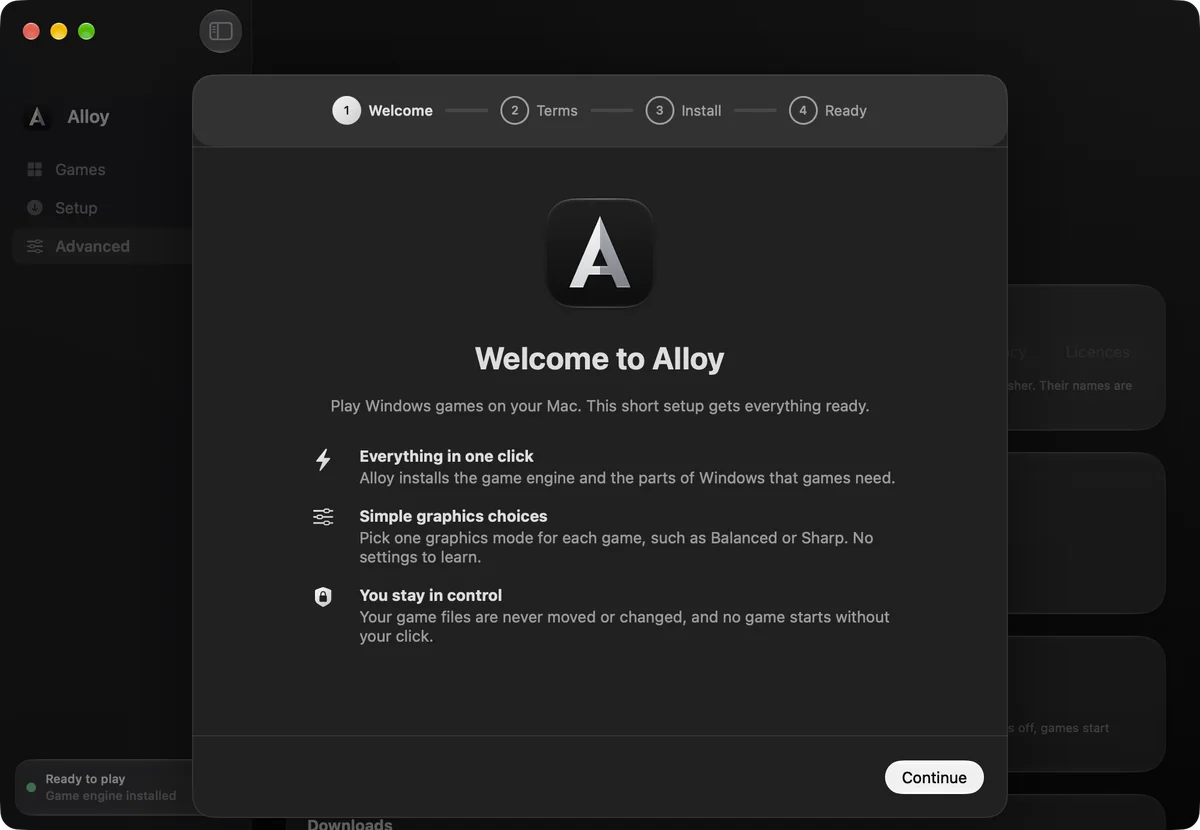
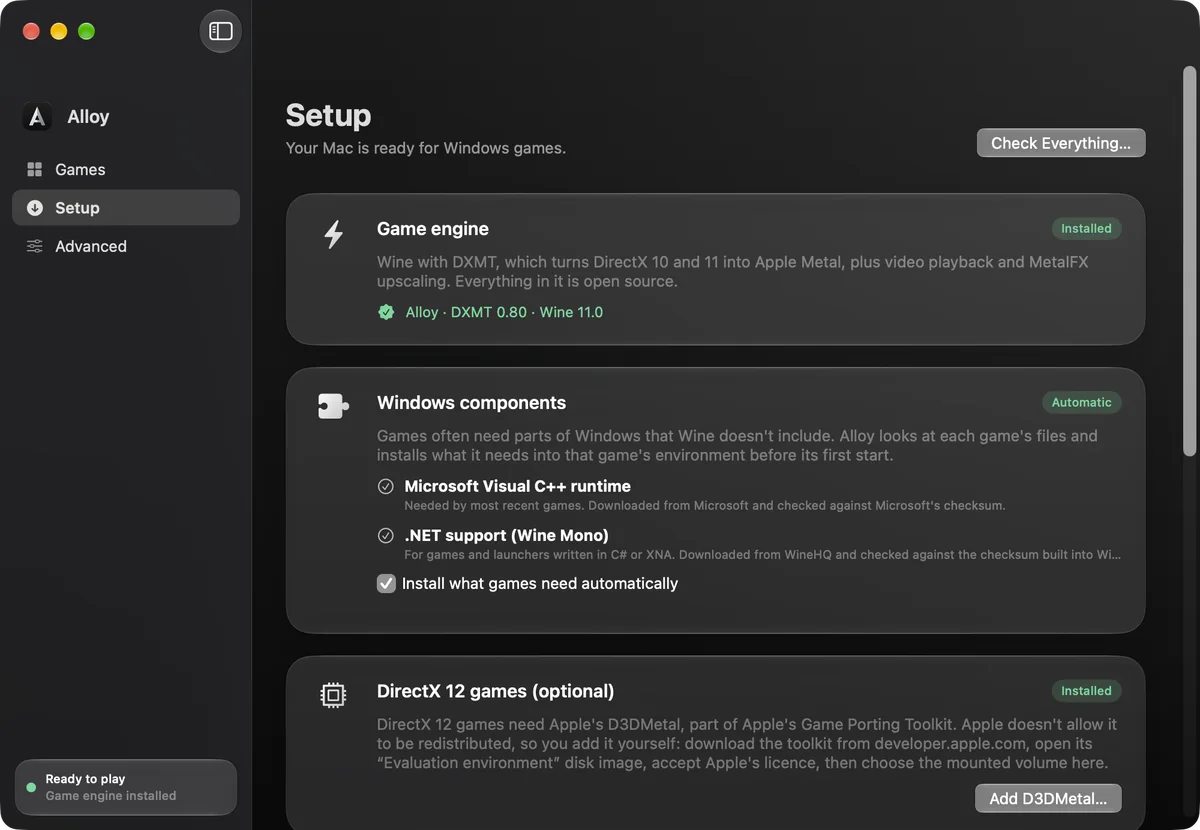
- In the welcome guide, accept the terms and click Install Everything. It installs Rosetta 2 if needed, the Alloy Game Engine and the Windows components games commonly need. When it says Ready, you can add games.
Why macOS warns you
This beta isn't signed with an Apple Developer ID yet, so macOS can't confirm who made it and shows an unknown developer warning. Right-clicking and choosing Open no longer gets past it on recent macOS, so use Open Anyway as above. Only do this for a copy of Alloy you downloaded from flake.co.in.
Check the download (optional)
If your browser kept the zip, you can confirm it arrived intact. In Terminal, run shasum -a 256 ~/Downloads/Alloy-0.9.4.zip. It should print 80d66493f41a1d5048011dcc6b2ae165e56f13474951568207e341d3ee0035a8.
Add a game
There are three ways in. All of them start on the Games page.
A game you already have
- Click Add Game and choose Add Installed Game Folder… You can also drag the folder onto the Games page.
- Alloy finds the game's program and works out the graphics engine and Windows components it needs. Nothing runs yet.
- Open the game's page and click Play. Alloy asks you to confirm the first start.
From its setup file
Choose Add Game › Install from Setup File… and pick the game's setup .exe or .msi. Alloy runs the installer in a new environment and adds the game to your library.
From Steam or Epic
- In Setup, install Steam or the Epic Games Launcher. The EA app, Ubisoft Connect, GOG Galaxy and Battle.net are there too. Sign in inside the store's own window.
- Choose Add Game › Install from Steam or Epic…
- Paste the game's store link or Steam app ID, for example
store.steampowered.com/app/620or620. - The store opens at the game. Click Install there; the store checks that you own it.
- Progress shows at the top of your library, and the game joins it when it's done. Games you install inside a store directly also appear, and start through that store.
Pick a graphics mode
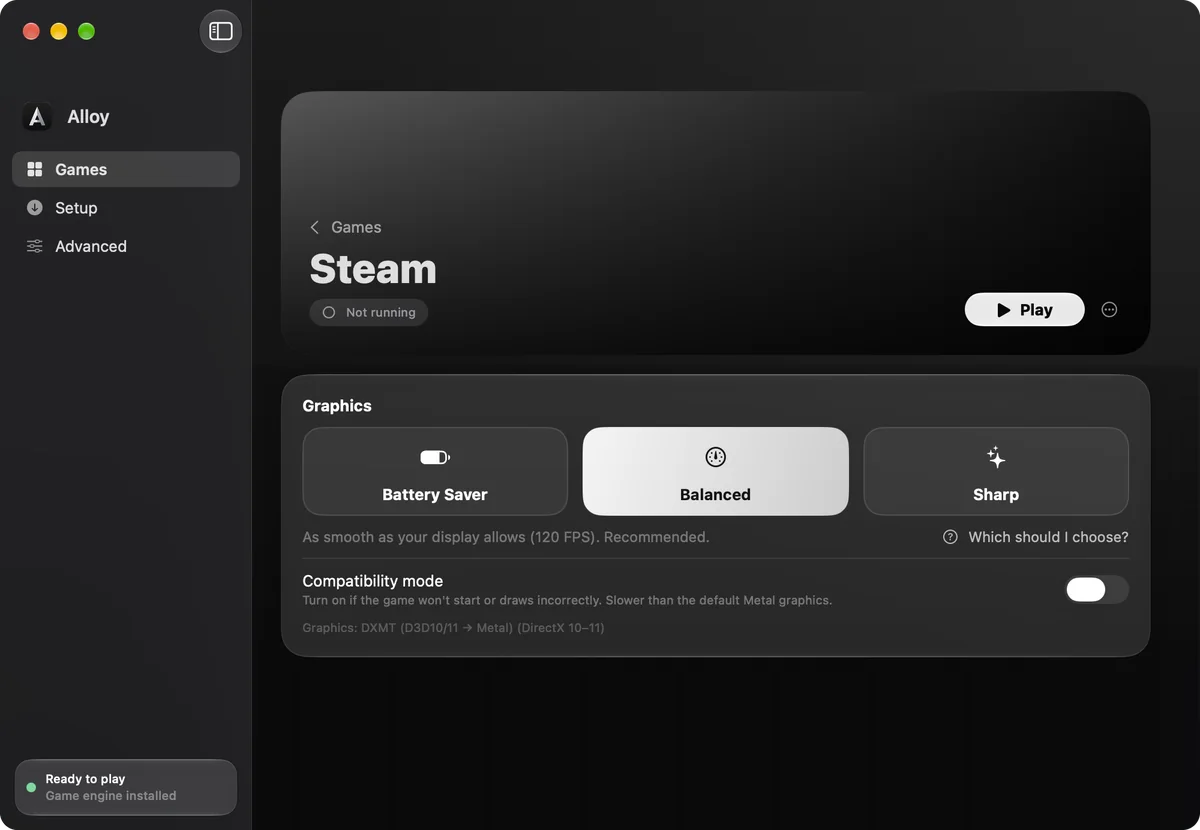
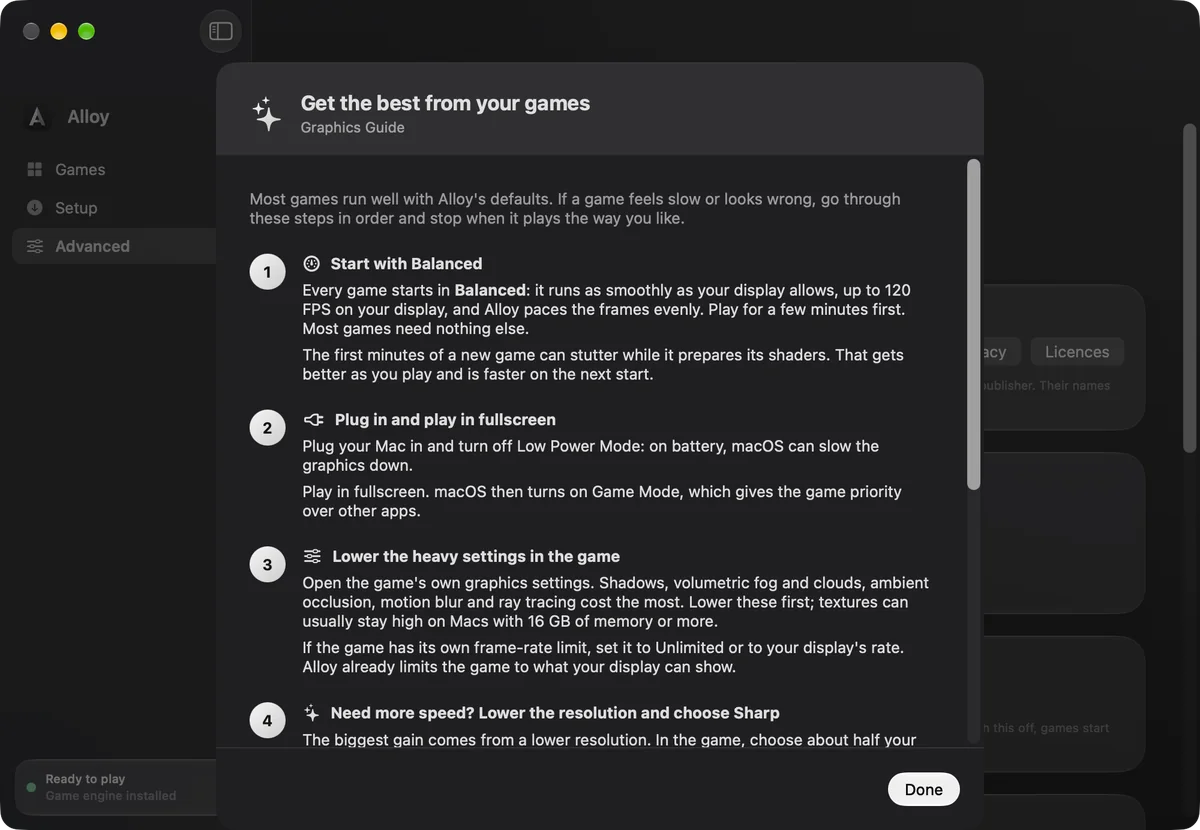
Each game's page has one graphics choice. Balanced suits most games, and Which should I choose? on the page walks you through the rest.
- Balanced Default
- As smooth as your display allows, capped at its refresh rate for even frame pacing.
- Sharp
- Apple MetalFX upscales every frame to your Retina resolution. Pair it with a lower in-game resolution for more FPS.
- Battery Saver
- Caps the game at 60 FPS for longer battery life and a cooler Mac. Shown only on displays faster than 60 Hz.
- Compatibility mode
- Wine's own OpenGL graphics. It's slower, so use it only if a game won't start or draws incorrectly.
Upscaling and frame generation
- DLSS games: for games that ship NVIDIA DLSS (and only those), Alloy turns on DLSS to MetalFX automatically. Choose DLSS in the game's own settings and the game uses Apple MetalFX instead. If the game crashes within a few minutes of starting, Alloy turns this off for that game and tells you; you can also turn it off under Advanced settings on the game's page.
- DLSS Frame Generation games (DirectX 12): with D3DMetal 4 added, the game's page offers frame generation. Turn on DLSS Frame Generation in the game.
- AMD FSR games: use the game's own FSR setting.
- Other games don't get frame generation. Without the game's own motion data, made-up frames smear edges and add input delay.
Watch and measure performance
- Press ⌥ ⌘ M while a game runs to show or hide Apple's performance overlay, with FPS, frame time and memory. It works even with the game in front.
- Advanced › Performance keeps a benchmark history for each game, with average FPS, 1% lows and stutter counts. It can import PresentMon or MangoHud logs, and it recommends the best setting.
When something goes wrong
- A crash or failed start shows What went wrong on the game's page: the cause in plain English, and a button that fixes it. More options sit under More Fixes.
- Advanced › Diagnostics shows each game's last result, problems and log. Open Logs Folder shows the files.
- If a game freezes, open its page and click Stop.
DirectX 12 games
DirectX 12 games need Apple's D3DMetal, part of Apple's Game Porting Toolkit. Apple's licence doesn't allow it to be redistributed, so Alloy never includes it. Adding it yourself takes a few minutes:
- Download the Game Porting Toolkit from developer.apple.com. You need a free Apple account.
- Open its Evaluation environment disk image and accept Apple's licence.
- In Alloy's Setup, click Add D3DMetal… and choose the mounted volume.
DirectX 12 works with 64-bit games only.
Remove a game
Open the … menu on the game's page and choose Remove from Alloy… Only the library entry goes; your game files are never touched.
Send feedback
Play your own games as you normally would, then tell us what worked and what didn't. Please include:
- The game, and where you bought it.
- Your Mac model, memory and macOS version.
- The graphics engine and mode shown on the game's page.
- What happened, and the steps to make it happen again.
- Optional: the log from Advanced › Diagnostics › Open Logs Folder. Passwords and tokens are removed, but read it before sending, as it may contain folder names.
Send it to support@flake.co.in. Questions about setting up are welcome there too.